Aug 4, 2026
 New
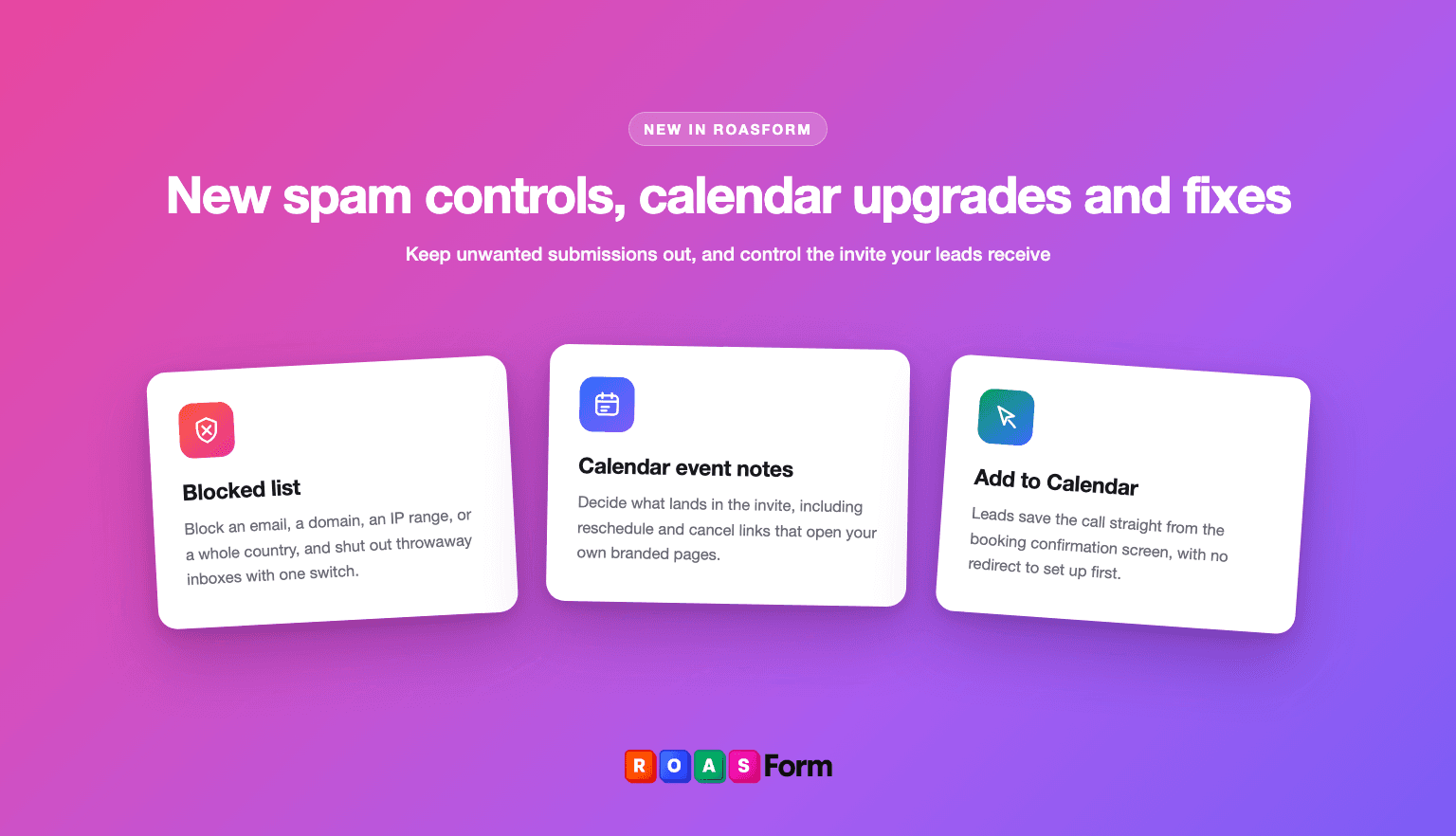
Block spam by email, domain, IP, or country
Stop specific people from using your subaccount's forms. Add an email address, an email domain, an IP address or range, or a whole country to your blocked list, and they can no longer open or submit any form in that subaccount. You can add a note to each entry so your team knows why it's there.
There's also a one-switch option to block throwaway email providers like Mailinator and 10minutemail, so people can't submit without a real address.
When spam does get through, block it straight from the submission or the contact. Pick what to block on the spot: their email, their IP, their device, their country, or any combination.
Where to find it: Settings, then Blocked List. To block from a lead, open a submission or contact and use the Block action.
Event notes on the Add to Calendar button, with your own reschedule and cancel links
Decide exactly what your leads see inside the calendar event t hey save. Write your own notes and pull in live details with the Insert menu: any answer from the form, the meeting link, and the reschedule or cancel links for that specific booking.
Those reschedule and cancel links go to your own branded pages, not a generic GoHighLevel or Calendly screen. Same design, same theme, same skin as the form they booked from. Rescheduling shows your live calendar with real availability, both pages confirm the change on screen, and you can edit every headline, message, and button label yourself.
The meeting link or location from GoHighLevel and Calendly is added to the event automatically, so your lead has everything in the invite without opening an email.
Where to find it: in the Form Builder, open your calendar ending, click Add to Calendar Button, and turn on Event notes. Use the preview tabs (Reschedule, Cancel) on the same ending to edit the wording of those pages.
Add to Calendar button on the booking confirmation screen
No redirect needed anymore. Leads can save the call straight from the confirmation screen inside your form, with the same layout, shape, size, and color controls as the pasted button.
Where to find it: in the Form Builder, open your calendar ending, set After booking to "Show a success message", then turn on Show on confirmation screen under Add to Calendar Button.
 Fixed
• File upload answers mapped to a GoHighLevel file upload custom field made the whole contact sync fail. Files now upload to the contact properly, and the rest of the sync never breaks because of them. Fixed.
If you map file uploads to custom fields, GoHighLevel needs one new permission. A notice on the GoHighLevel card in Integrations tells you when to reconnect, and nothing disconnects on its own.