
Sep 22, 2026
 New
Email verification, free while it is in beta
Turn it on for the forms you choose and every email is checked the moment a lead continues. If the address can't receive mail, the lead is asked to fix it before they can go on, so typos, throwaway inboxes and dead domains never become leads. Shared inboxes like info@ still go through, flagged as role addresses. It is free during the beta, and if that ever changes you will hear from us first.
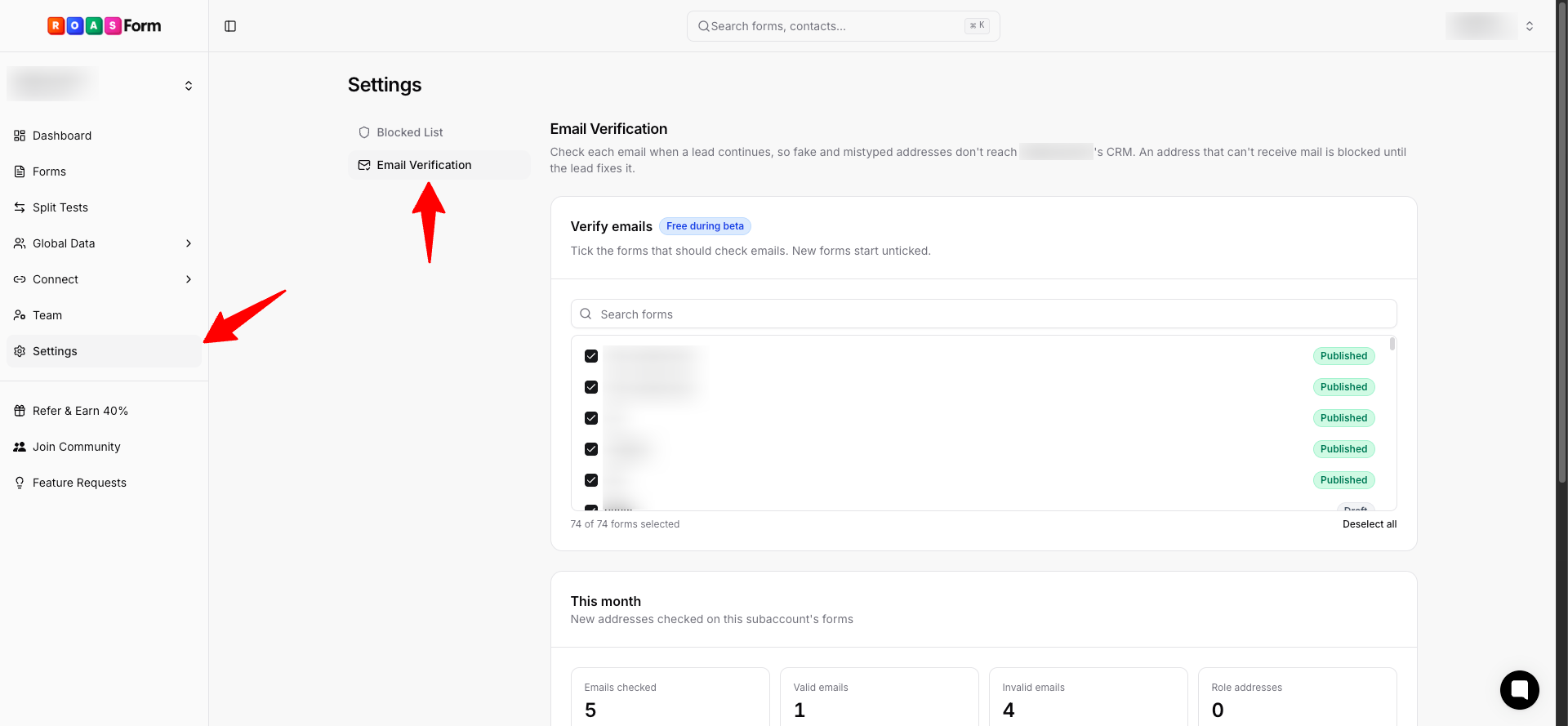
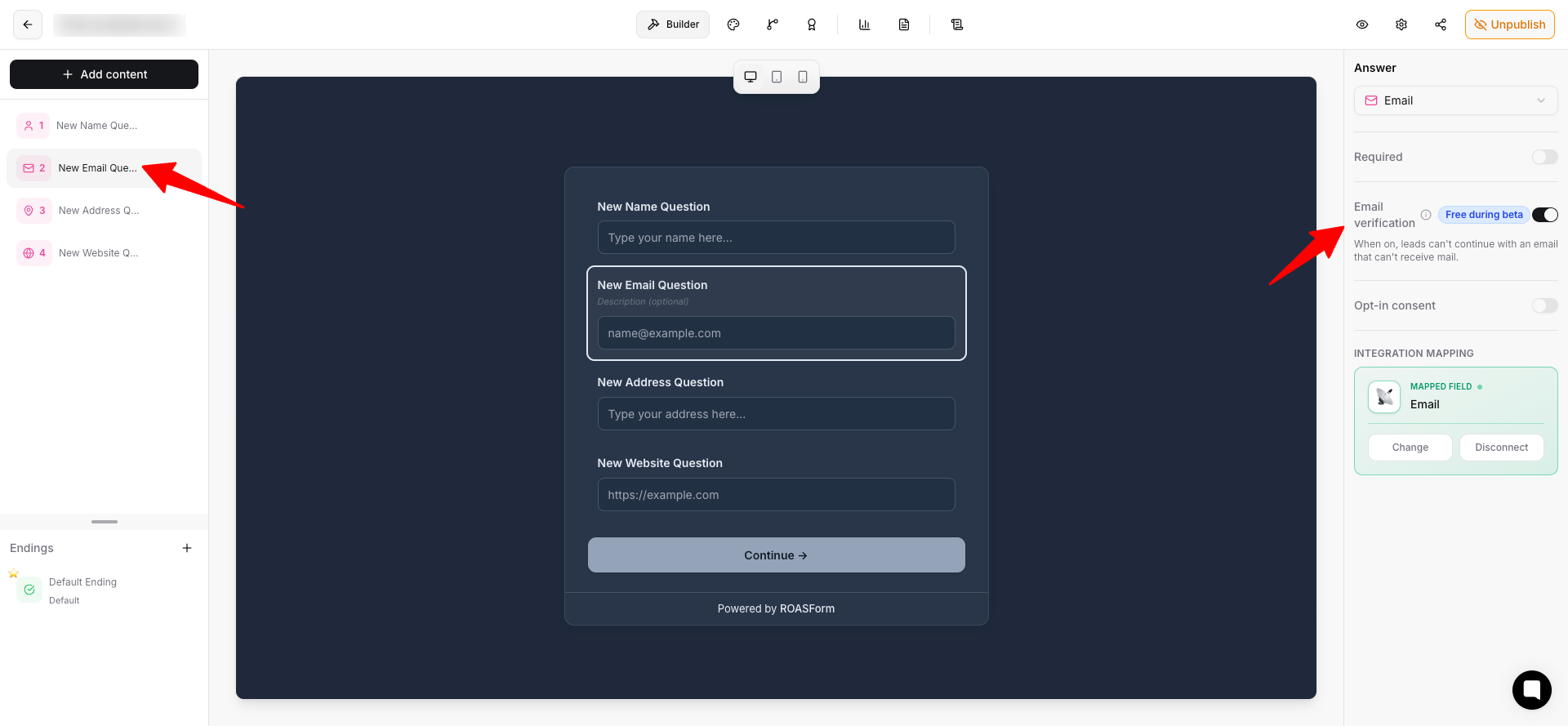
Where to find it: Settings, Email Verification. Tick the forms that should check emails. You can also switch it per question on any email question in the form builder
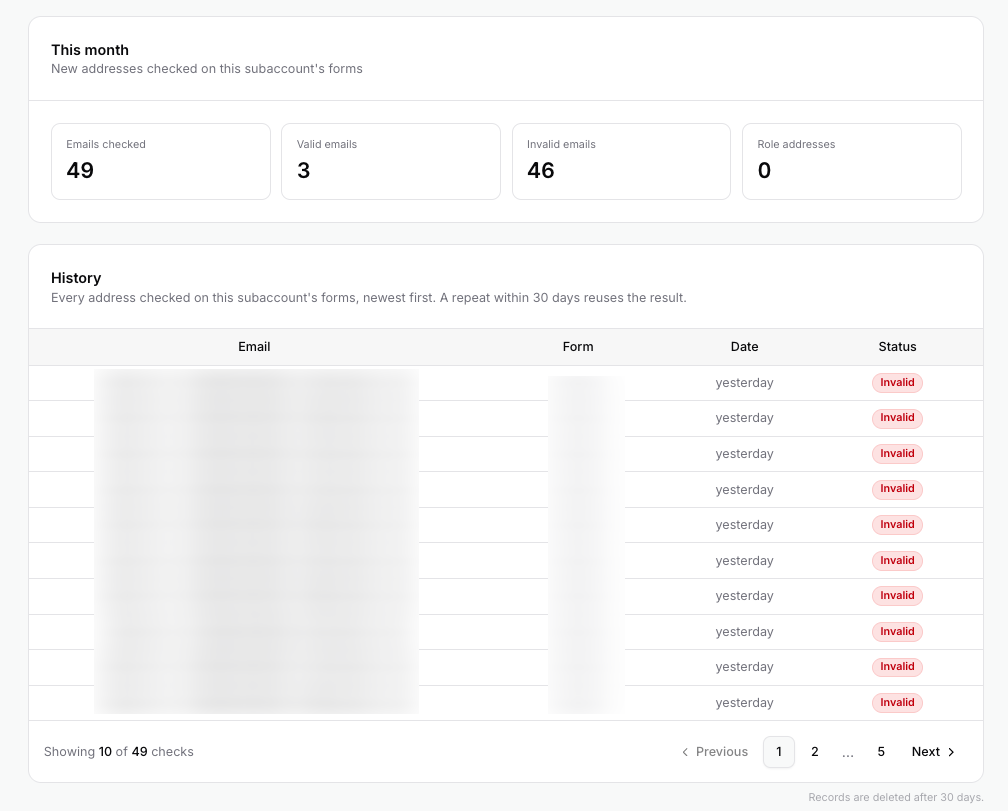
Every check, and this month at a glance
See how many addresses were checked this month, and how many came back valid, invalid or as role addresses. Below that, every address your forms checked, with the form it came from and why it got its result. The same address checked again within 30 days reuses the answer instead of checking twice, and records are cleared after 30 days.
Where to find it: Settings, Email Verification
Bad addresses stay out of your CRM
If someone starts a form and leaves, and the address they typed turns out to be invalid, that lead is held back from your CRM instead of being pushed with an address nobody can reach. It shows as Blocked, and hovering tells you why. You will also see the result next to the email answer whenever you open a submission or an appointment.
Where to find it: Submissions and Appointments, open any lead
Folders for your forms
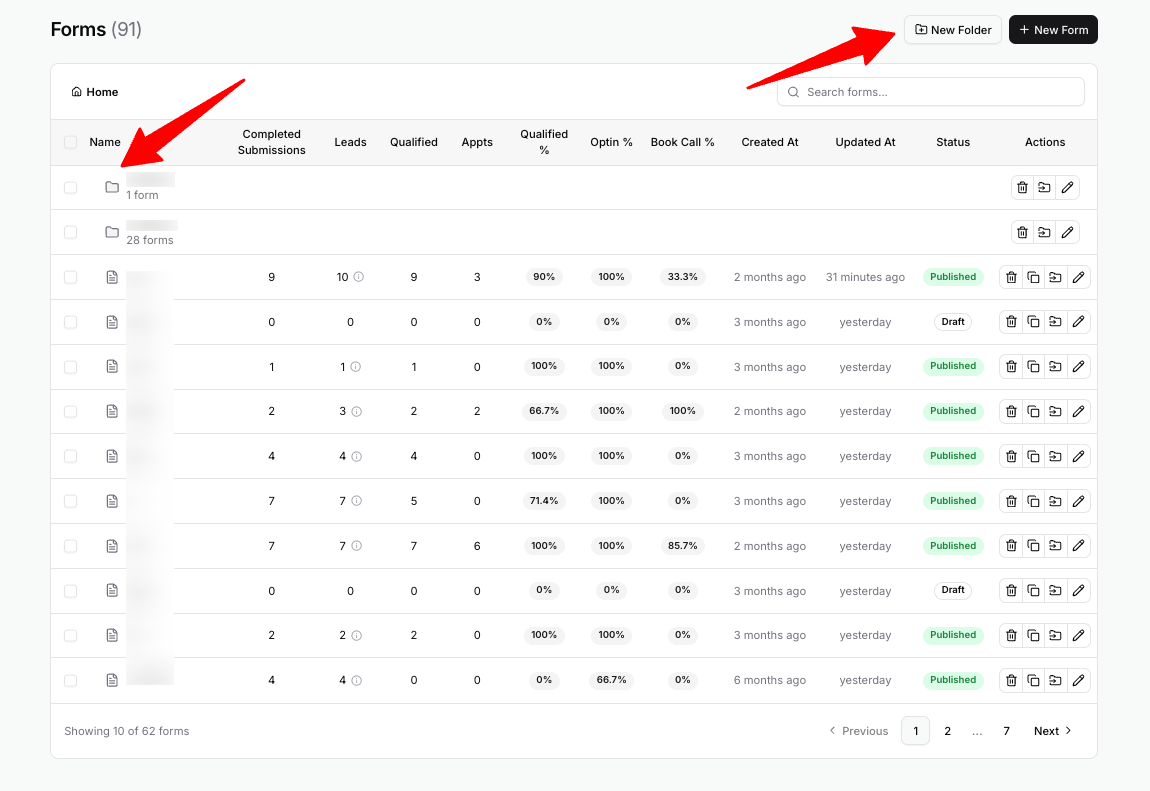
Group your forms into folders, and put folders inside other folders. Each folder shows how many forms and folders are inside it, and the path above the table takes you back up to Home. Search still looks through every folder and shows where each result is. A new form is created in the folder you have open, and a copy stays in the same folder as the original. Deleting a folder deletes everything inside it, forms included, along with their submissions and leads, so you're always asked to confirm first.
Where to find it: Forms, New Folder
Move forms by dragging, one at a time or many at once
Drag a form or folder onto a folder to move it there, or onto a name in the path above the table to move it back up. Hold it over a folder for a moment and the folder opens, so you can drop it further in. To move several at once, tick the forms and folders you want and click Move, or drag one of the ticked rows and everything you ticked comes along. The box at the top of the table ticks everything you're looking at, including forms on other pages. Moving a form never changes its Updated At date.
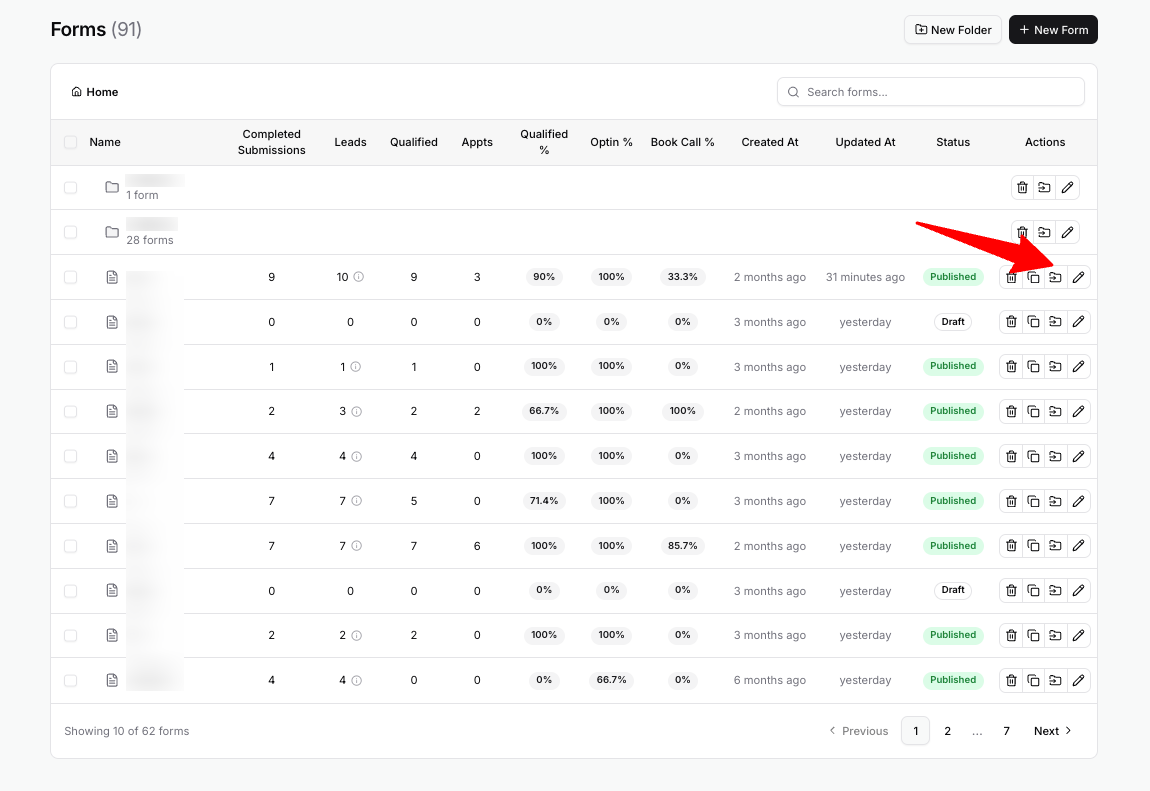
Where to find it: Forms. Every row also has a Move to folder button, and on a phone or tablet you drag by the handle at the left of the row
 Fixed
• Every row on the Forms page is now the same height. Long names and descriptions stay on one line, and hovering shows the full text.