
Aug 14, 2026
 New
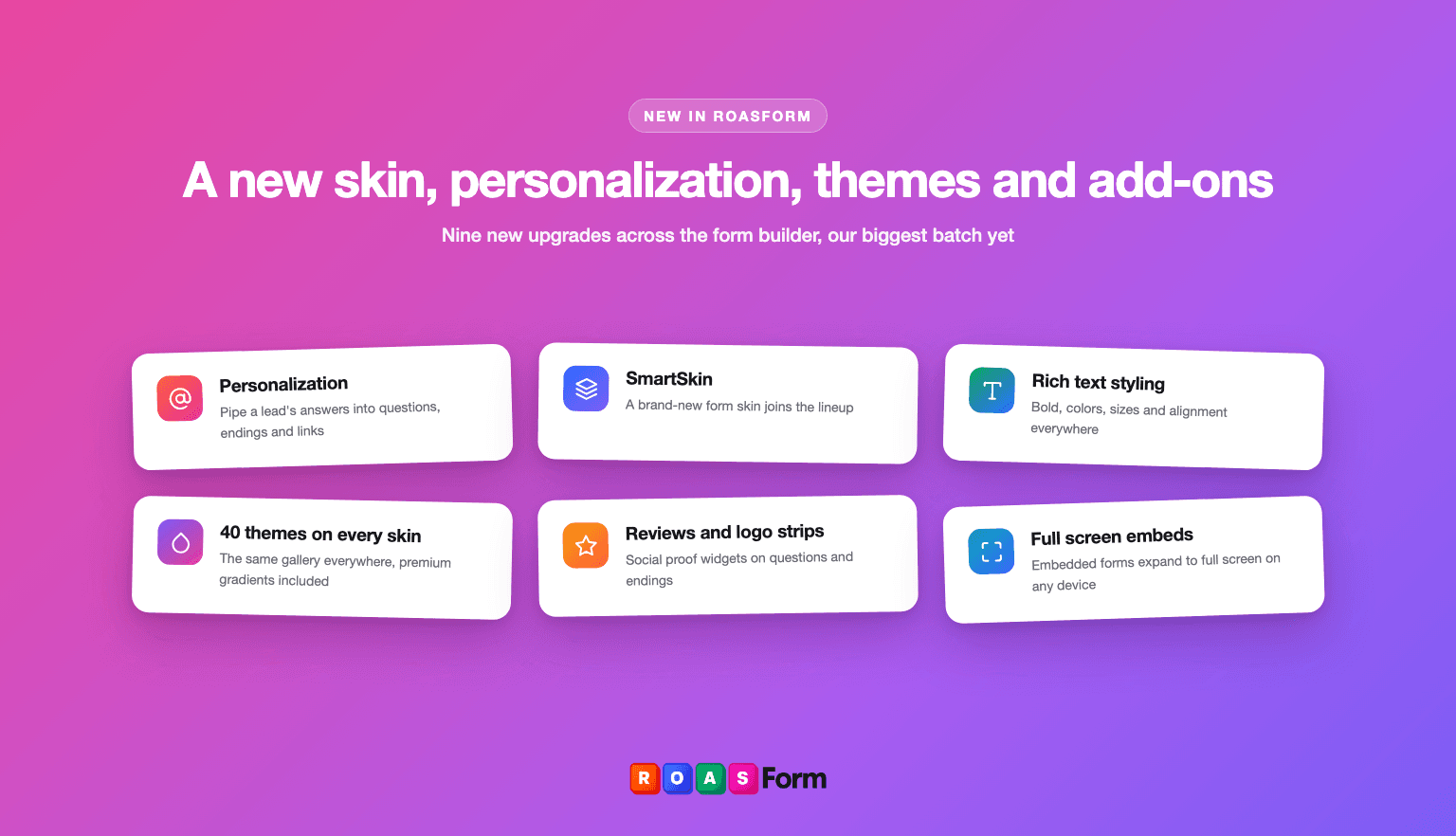
Personalization: pipe answers into your forms
Type @ in any headline or description to drop in an answer from an earlier question, so your form can talk back: "Nice to meet you, John". Piped answers carry through to endings and redirect URLs too, and you can set a fallback for skipped questions.
Where to find it: Form builder, type @ while editing any headline or description
Meet SmartSkin, our newest form skin
A fresh new look for your forms, joining the existing four skins. Pick it and every theme, color and font control works just like you'd expect, and you can set the widget size to small, medium or large.
Where to find it: Design tab, Skin selector. The widget size sits in Design, Settings
Rich text styling everywhere
Headlines and descriptions now support bold, italics, per-line alignment and text color, on every skin. We also added 15 new fonts to pick from.
Where to find it: select any text in the form builder
Size your type once, or element by element
A new Base size sets the scale for the whole form from one place, and everything follows it: text, spacing and control sizes. Want only the wording to change? Turn off "Scale elements with base size" and the layout stays exactly where it is. Need one headline bigger than the rest? Override the size of any single element from the toolbar, and set it back to Default whenever you want it following the form again. Every skin, every element.
Where to find it: Design tab, Base size. Per-element sizes live in the toolbar when you select text
40 ready-made themes on every skin
The full theme gallery, including the premium and gradient categories, is now identical across all skins, so switching skins never costs you your look.
Where to find it: Design tab, Themes
Fine-tune colors, and reset whenever you want
Go past the theme and set colors element by element: headlines, descriptions, buttons, inputs and more, each on its own, on every skin. Changed your mind? Reset design puts the form back to a clean slate in one click, and asks you to confirm first so you never lose work by accident.
Where to find it: Design tab, open Advanced inside Colors. Reset design sits in the same tab
Style your choice options
Choice questions can now show numbers or letters instead of plain markers, or hide the marker entirely, with your own badge colors. Existing forms keep exactly the look they have today.
Where to find it: List style in any choice question's settings, with the colors under Design, Colors
Image, Video and Text blocks
Three new blocks you can drop anywhere in a form: an image, a video, or a formatted text block. Handy for explaining an offer or showing proof before you ask the next question.
Where to find it: form builder, add an element, Creatives
Reviews and logo strips
Add social proof right inside your form: a strip of star-rated reviews with avatars, or a row of client logos, shown on questions and endings where you choose.
Where to find it: Design tab, Add-ons
Loading screens, before and during the form
On Solo and Agency plans you can brand the moment before the form appears: your own logo, colors and background, or turn the loading screen off entirely. Separately, on any plan, you can drop a Loading step inside the form that shows a spinner and a message for a few seconds, then moves on by itself. Perfect for "analyzing your answers" moments before a result.
Where to find it: Form settings for the loading screen. For the in-form step, add an element and pick Creatives, Loading
Full screen embeds, and embed settings for split tests
Embedded forms can now expand to true full screen on any device, giving leads a distraction-free view, then return to your page exactly where they left off. You can also hide the scrollbar for a cleaner embed.
Where to find it: Share, Embed settings, on both forms and split tests
Finishing touches on endings
Success endings can now fire confetti, and you can upload your own icon for success, redirect and booking endings.
Where to find it: ending settings in the form builder
Send conversion events to Meta manually
Close a deal offline? You can now fire a Facebook Conversion API event for any lead straight from their contact page: pick the event, the time, and which pixel receives it. We bundle every identifier we have for that contact (emails, phones, IPs and more) for the strongest possible match quality, and every send shows up in your integration logs.
Where to find it: open any contact and hit "Send manual CAPI"
Event details on the confirmation screen too
If you show the Add to Calendar button on the booking confirmation screen instead of redirecting, that button now creates the same complete calendar event as the pasted one.
Where to find it: Ending settings, Show on confirmation screen
 Fixed
• Structured addresses now display cleanly in submissions and analytics instead of raw data
• Placeholder text and text selection are now legible on dark themes in the builder
• Long-text questions no longer show desktop keyboard hints on mobile
• Calendar invites no longer leave an empty label behind when a meeting, reschedule or cancel link is unavailable, the line is simply left out
• Add to Calendar invites now include the meeting, reschedule and cancel links by default on newly added buttons